Sending ₱5,000 from Maya to GCash costs you ₱5,010: Maya charges a ₱10 fee for every successful InstaPay transfer from your Maya account to another bank or e-wallet, and GCash counts as one. InstaPay transfers arrive almost instantly. This guide shows how to transfer Maya to GCash step by step, what your account needs first, and the two official ways to pay less.
What you need before you transfer Maya to GCash
- An upgraded Maya account. A Basic account cannot send money out. Maya lists "transfer money to other bank accounts" among the things you unlock when you upgrade from Basic to Upgraded.
- Enough balance for the amount plus the fee. Maya asks you to make sure you have enough funds to cover the transfer amount and applicable fees before you send.
- The recipient's GCash account number and name. Maya warns that the account number for an e-wallet may be different from an ATM or card number, so ask the recipient to confirm the exact details shown in their GCash app.
How to transfer Maya to GCash, step by step
Maya's Bank Transfer page lists GCash by name among the receiving banks and wallets. The steps in Maya's help centre are:
- Open the Maya app and tap Bank transfer.
- Choose GCash from the list of banks and e-wallets.
- Enter the amount and the recipient's GCash account details, then tap Continue.
- Check every detail, then tap Transfer now.
- Enter the one-time PIN (OTP) that Maya sends to your registered mobile number.
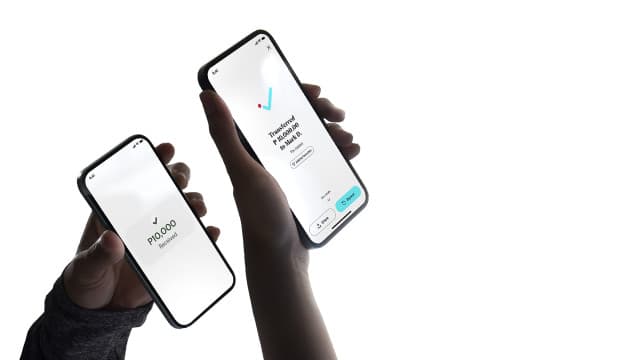
- Tap View receipt to see your proof of transfer. You also get an in-app confirmation message. You can tap Save details to favorites so the next transfer to the same person is faster.
Paano mag transfer ng pera from Maya to GCash?
In short: open Maya, tap Bank transfer, pick GCash, enter the amount and the recipient's GCash details, tap Continue, then Transfer now, and enter the OTP. Each successful transfer costs ₱10, and you need an upgraded account to do it.
Why a Maya to GCash transfer can fail
Maya's bank transfer help article lists four reasons a transfer is unsuccessful:
- an invalid or incorrect account number;
- a frozen or blocked account;
- a dormant account;
- a receiving account that has exceeded its inflow (incoming money) limit.
The last one matters for GCash. If the person you are paying has already received a lot this month, ask them to check their GCash limit before you send.
Maya to GCash transfer limits
These are the limits for an Upgraded Maya account when you send by InstaPay, the Bangko Sentral ng Pilipinas (BSP) system for real-time transfers between banks and e-wallets:
| Limit | Upgraded Maya account |
|---|---|
| InstaPay transfers per day | ₱50,000 |
| InstaPay transfers per month | ₱100,000 |
| Number of InstaPay transfers per month | 40 |
| Monthly wallet balance limit | ₱100,000 |
Maya's own explainer adds that InstaPay allows up to ₱50,000 per transaction and runs 24/7, including weekends and holidays. Maya notes that monthly limits are subject to change, so check the Account Limits page if you plan a large transfer.
How much the ₱10 fee adds up to
The fee is flat, so it hurts most on small transfers. By our math, using Maya's ₱10 rate:
- Sending ₱500 costs ₱510, so the fee is 2% of the amount.
- Sending ₱5,000 costs ₱5,010, so the fee is 0.2%.
- Ten transfers in a month cost ₱100 in fees (10 × ₱10).
If you send money to the same GCash user often, one larger transfer costs less in fees than several small ones.
How to transfer Maya to GCash without a fee
There is no fee-free route that works for everyone, every time. There are two official ways to pay less.
1. Waived fees through Maya XP
Maya XP is Maya's level system: you gain XP points as you use the app and unlock benefits as you level up. One benefit is a waived bank transfer fee. Maya explains how often fees are waived by level:
- Plus and Pro: waived fees every third transaction (your 3rd, 6th, 9th and so on).
- Elite and Ultra: waived fees every other transaction (your 2nd, 4th, 6th and so on).
There is a catch. Only InstaPay transfers sent from your Maya Wallet count toward the waived bank transfer fee. Transfers from Maya Savings do not.
By our math, a Plus user who makes ten transfers a month gets three of them free (the 3rd, 6th and 9th), so they pay ₱70 instead of ₱100.
2. PESONet from Maya Savings
If you have a Maya Savings account (from Maya Bank), its fee table lists PESONet transfers as "waived until further notice", while InstaPay transfers from Savings cost ₱10 each. PESONet is the BSP's slower transfer system: it is not instant, and money sent late in the day can roll over to the next banking day.
To send from Savings, Maya's steps are: open Maya Savings, tap Transfer, choose Other banks & wallets, select the destination, and enter the account name, number, amount and purpose. You then transfer via InstaPay or PESONet "depending on the amount and the destination bank or wallet you have entered". That means the PESONet option may not appear for every GCash transfer. When it does, the money may take 1 to 2 banking days to arrive, so use it only when the recipient does not need the money right away.
What to do if the money did not reach GCash
Maya's help centre gives these steps for an InstaPay transfer that was not credited:
- Check the Maya Service Status page. If a service problem hit your transfer, Maya says it will either return the money to your Maya account on the next banking day or send it to the recipient within 2 banking days.
- Ask the recipient to check their balance and history. The 6-digit InstaPay reference number in your Maya history should match the last 6 digits of the reference number on the recipient's side.
- Wait up to 2 banking days if the amount still does not show.
- Contact the receiving e-wallet, here GCash, with the amount, the date and time, and the InstaPay reference number.
If you need Maya's help, use Chat with us in the app's Help Center, or call Maya's hotline at (+632) 8845-77-88 (domestic toll-free 1800-1084-57788).
Sent it to the wrong GCash account?
Maya's advice for a transfer to the wrong account depends on the status in your transaction history:
- Pending or unsuccessful: the amount is returned to your Maya account within 2 banking days if the transfer cannot be completed.
- Successful: contact the receiving e-wallet (GCash) directly with your transaction details. It can ask the recipient whether they are willing to return the money. Maya warns that a completed transfer to a valid account may not be automatically reversible.
That is why the last check before Transfer now matters most. Going the other way, or sending to a bank instead? See our guides on moving money from Maya to a bank account and transferring from GCash to a bank.